How to Use AWS for Cloud-Based Web Development
A practical, no-fluff guide to deploying real web apps on AWS — from S3 static hosting to EC2, RDS, and beyond. Learn the services that actually matter and how they fit together.
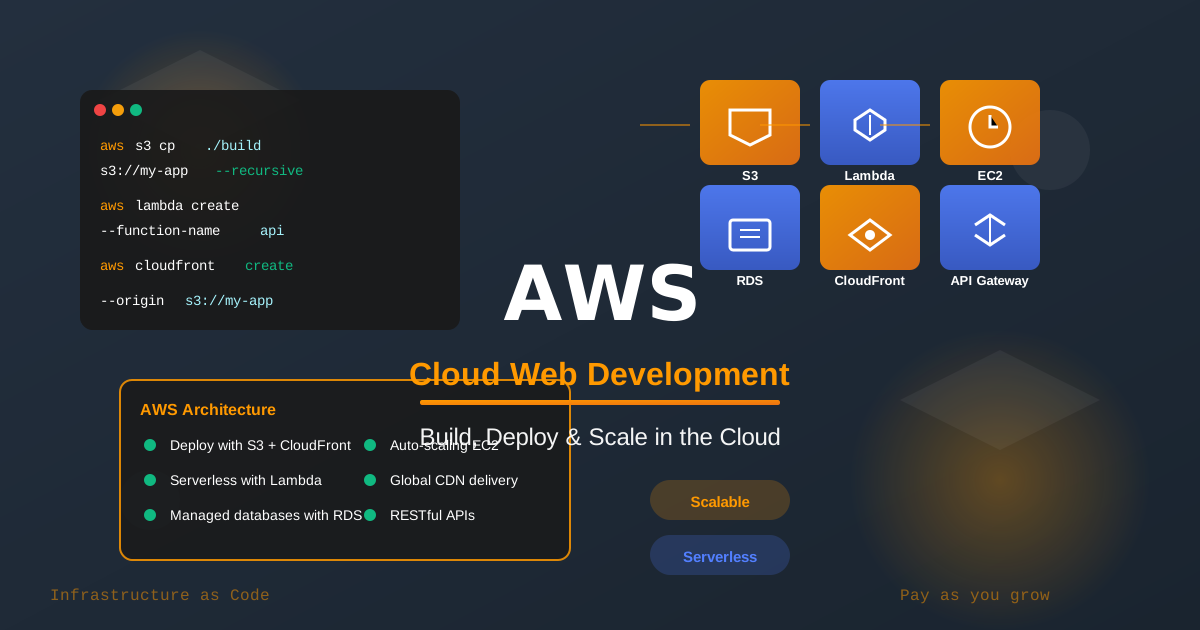
How to Use AWS for Cloud-Based Web Development
Storytime: the first time I deployed something to AWS, I opened the console, saw the sidebar with 200+ services listed, and immediately closed the tab. I came back two days later, deployed to the wrong region, and then spent an afternoon wondering why my app was slow before realizing my database was in Ohio and my users were in Europe.
Nobody tells you this stuff. They just say "use AWS" like it's a single thing.
AWS is not a single thing. It's a platform of building blocks, and the trick is knowing which three or four blocks you actually need for web development — and ignoring the rest until you need them. Let me walk you through the ones that matter.
Before You Do Anything
You'll need an AWS account. Go to aws.amazon.com and sign up. You get a generous free tier for 12 months that covers everything in this post.
One strong recommendation before you touch a single service: set up billing alerts immediately. AWS charges by usage, and it's easy to forget a running instance. Go to the Billing console, set an alert at $5 and another at $20, and you'll never have a surprise invoice. I do this first on every account I create.
Also: never put your root account credentials anywhere near your code. Create an IAM user with appropriate permissions and use those credentials instead.
# Install the AWS CLI
npm install -g aws-cli   # or use the official installer

# Configure with your IAM credentials
aws configure
# Prompts you for Access Key ID, Secret Access Key, region, output format
Pick your region here. Choose whatever's geographically closest to your users — this matters for latency. I use us-east-1 for US projects and eu-west-1 for European ones.
S3: Your First Stop for Static Sites
If you're deploying a static site — a React, Vue, or plain HTML/CSS app — S3 is where you start. S3 (Simple Storage Service) is object storage, but with one setting flipped, it becomes a web host.
Let's set it up:
# Create a bucket (bucket names must be globally unique)
aws s3 mb s3://my-awesome-app --region us-east-1

# Enable static website hosting
aws s3 website s3://my-awesome-app \
  --index-document index.html \
  --error-document index.html

# Build your app and deploy
npm run build
aws s3 sync ./dist s3://my-awesome-app --delete
That --delete flag removes files from S3 that no longer exist in your build output. Omit it once and you'll be serving old JavaScript indefinitely — I've done this, it's confusing.
Your site is now live at a URL like http://my-awesome-app.s3-website-us-east-1.amazonaws.com. Not pretty, but it works.
CloudFront: The Layer You'll Always Want
S3 hosting alone gives you a slow, ugly URL with no HTTPS. CloudFront is AWS's CDN — it caches your site at edge locations worldwide and adds HTTPS. For any production site, these two live together.
# Create a CloudFront distribution pointing at your S3 bucket
aws cloudfront create-distribution \
  --distribution-config file://cloudfront-config.json
The config file handles the details — origin (your S3 bucket), price class, SSL certificate. Here's the minimal version:
{
  "Origins": {
    "Items": [{
      "Id": "S3-my-awesome-app",
      "DomainName": "my-awesome-app.s3.amazonaws.com",
      "S3OriginConfig": { "OriginAccessIdentity": "" }
    }]
  },
  "DefaultCacheBehavior": {
    "ViewerProtocolPolicy": "redirect-to-https",
    "CachePolicyId": "658327ea-f89d-4fab-a63d-7e88639e58f6"
  },
  "DefaultRootObject": "index.html",
  "Enabled": true
}
Notice "ViewerProtocolPolicy": "redirect-to-https" — that's the line that forces HTTPS. Always include it.
One thing that trips people up: CloudFront aggressively caches everything. When you deploy a new version, you need to invalidate the cache:
aws cloudfront create-invalidation \
  --distribution-id YOUR_DIST_ID \
  --paths "/*"
Add this to your deploy script. Forget it once, spend 20 minutes wondering why your changes aren't showing up, add it permanently.
EC2: When You Need a Real Server
S3 + CloudFront covers static sites. But if you're running a Node.js API, a Python backend, or anything server-side, you need EC2 — a virtual machine you control.
# Launch an instance (Amazon Linux 2, t3.micro — free tier eligible)
aws ec2 run-instances \
  --image-id ami-0c55b159cbfafe1f0 \
  --instance-type t3.micro \
  --key-name my-keypair \
  --security-group-ids sg-12345678 \
  --count 1
The key-name refers to an SSH key pair you create in the EC2 console first. Keep that .pem file safe — losing it means losing SSH access to your instance.
Once it's running, SSH in and set up your environment:
ssh -i "my-keypair.pem" ec2-user@your-instance-public-ip

# On the instance:
sudo yum update -y
sudo yum install -y nodejs npm

# Clone your app, install dependencies, start it
git clone https://github.com/you/your-app
cd your-app
npm install
node server.js
For production, you'll want a process manager so your app restarts if it crashes:
npm install -g pm2
pm2 start server.js --name my-app
pm2 startup   # makes pm2 start on system boot
pm2 save
I personally reach for pm2 on every Node.js EC2 deployment. It's the difference between "my app dies at 3am and nobody notices" and "my app restarts itself and sends me a notification."
RDS: A Database You Don't Have to Babysit
Running a database on your EC2 instance works but creates problems — backups, scaling, failover — that RDS (Relational Database Service) handles for you. RDS manages PostgreSQL, MySQL, and others as a managed service.
# Create a PostgreSQL database
aws rds create-db-instance \
  --db-instance-identifier my-app-db \
  --db-instance-class db.t3.micro \
  --engine postgres \
  --master-username admin \
  --master-user-password your-secure-password \
  --allocated-storage 20 \
  --no-publicly-accessible
Notice --no-publicly-accessible. Your database should never be directly reachable from the internet — only from your EC2 instance (or Lambda, or whatever's in your VPC). This is the setting people skip and then regret.
Connect from your app using the RDS endpoint:
const { Pool } = require('pg');

const pool = new Pool({
  host: 'my-app-db.abc123.us-east-1.rds.amazonaws.com',
  port: 5432,
  database: 'myapp',
  user: process.env.DB_USER,
  password: process.env.DB_PASSWORD,
});
Store credentials in environment variables, not in code. Always. RDS gives you automated backups, point-in-time recovery, and easy vertical scaling — things that would take days to build yourself on a raw EC2 instance.
Lambda: For the Things You Don't Run Constantly
Not everything needs a persistent server. If you have a webhook handler, an image resize job, a scheduled report, or any function that runs occasionally — Lambda is your friend. You pay only when it runs, and you don't manage any servers.
// A simple Lambda handler
exports.handler = async (event) => {
  const body = JSON.parse(event.body);

  // Do your thing
  const result = await processWebhook(body);

  return {
    statusCode: 200,
    body: JSON.stringify({ success: true, result }),
  };
};
Deploy it:
# Zip your function
zip -r function.zip index.js node_modules/

# Create the Lambda function
aws lambda create-function \
  --function-name my-webhook-handler \
  --runtime nodejs18.x \
  --handler index.handler \
  --role arn:aws:iam::YOUR_ACCOUNT:role/lambda-execution-role \
  --zip-file fileb://function.zip
Pair it with API Gateway to expose it over HTTP, or trigger it from S3 events, SQS messages, or a schedule. Lambda is the piece that makes "serverless" actually work in practice.
How It All Fits Together
Here's the architecture I reach for on most web projects:
Users → CloudFront → S3 (frontend)
                  ↘
                   API Gateway → Lambda (lightweight endpoints)
                              ↘
                   EC2 (Node/Python API) → RDS (PostgreSQL)
The frontend is static, served fast from S3/CloudFront. The API sits on EC2 or Lambda depending on whether it needs to run constantly. The database lives in RDS, not accessible from the outside world.
You don't need all of this on day one. Start with S3 + CloudFront for a static frontend, add EC2 + RDS when you have a backend, add Lambda when you have workloads that don't need a persistent server. Build what you need, add pieces as you go.
The One Thing That Will Save You Later
Use environment-specific configurations from the start. Separate S3 buckets, separate RDS instances, separate everything for dev and prod. It's slightly more work now and will save you enormously from "I accidentally ran a migration against production" situations.
# Deploy to staging
aws s3 sync ./dist s3://my-app-staging --delete

# Deploy to production (separate command, requires confirmation in your deploy script)
aws s3 sync ./dist s3://my-app-prod --delete
That friction is intentional. Make production deploys feel slightly different from staging deploys, and you'll make fewer mistakes.
Go Deploy Something
Pick the smallest possible thing you have and deploy it. A static landing page to S3, a simple Express API to EC2, anything. The first deployment teaches you more than all the documentation combined.
AWS has a learning curve — the console is overwhelming and the IAM permissions will confuse you at least once. But the underlying model is consistent: create a resource, configure it, connect it to other resources, deploy your code. Once that clicks, the rest is just learning which service does what.
You've got this. Set that billing alert first, then go build something. 🎉
Useful links:
- AWS Free Tier — what's included and for how long
- AWS CLI Reference — every command documented
- AWS Well-Architected Framework — when you're ready to think about production hardening
- CloudPing — find the fastest AWS region for your users

Norbert Br3tt