The Model Context Protocol (MCP): Giving AI "Hands"
Discover how the Model Context Protocol lets AI interact with your databases, browsers, logs, and APIs directly. Learn what MCP is, explore production-ready servers, and build your own AI tools.
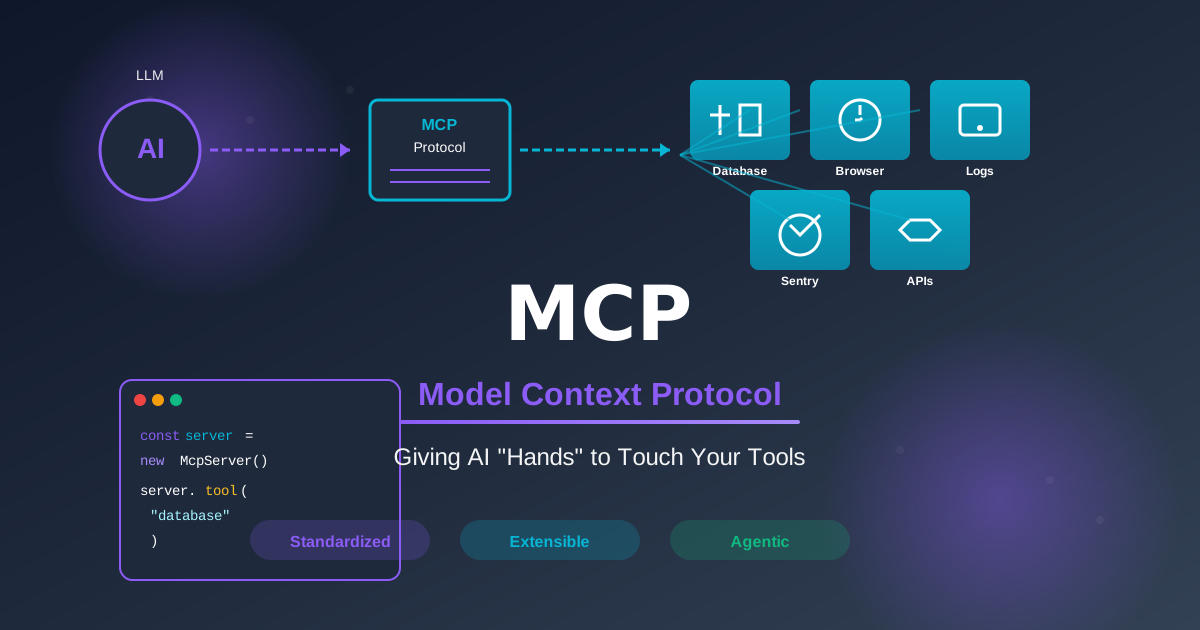
MCP: Give Your AI Eyes and Hands, Not Just a Keyboard
Storytime: I was debugging a production issue at an unreasonable hour. The AI I was using was helpful — genuinely helpful — right up until the moment I needed it to check something in the database, verify an environment variable, or pull a stack trace from our error tracker. Each time, I had to stop, context-switch to another tab, copy something, paste it back, repeat.
The AI was smart. But it was blind.
The Model Context Protocol (MCP) fixes this. Instead of you manually shuttling context between your tools and your AI, MCP lets the AI reach out and grab what it needs directly — databases, browser sessions, error trackers, internal APIs, whatever you choose to expose. It's working in production today, and once you experience it, it's hard to go back.
What's Actually Happening Here
MCP is a client-server protocol — but not in the web sense. Three pieces:
MCP Hosts are AI applications that support the protocol. Claude Desktop, Cursor, and others. The host manages connections to MCP servers and decides when to invoke them.
MCP Servers expose tools (functions the AI can call) and resources (data the AI can read). One server for your database, another for error tracking, another for your browser — each focused on a specific domain.
The Protocol itself is JSON-RPC under the hood, but you don't need to know that. You just need to know: when you ask your AI a question, it can now go get the answer instead of waiting for you to paste it in.
Here's what that looks like in practice:
You ask: "What's causing the error spike today?"
The AI queries your Sentry MCP server → fetches recent issues → reads the relevant code → answers your question in plain language.
You see the answer. You never opened Sentry.
Servers You Can Use Right Now
The ecosystem already has solid integrations for common dev workflows. Let me walk you through the ones I'd reach for first.
Chrome DevTools MCP
This one gives your AI control of a real browser. Instead of describing how to reproduce a bug, you can ask the AI to reproduce it.
// Natural language prompt:
"Open the staging login page, try the test credentials,
and report any console errors"

// What the AI actually does:
// 1. Launches browser, navigates to URL
// 2. Fills and submits the form
// 3. Monitors the console
// 4. Reports back what it found
I personally find this most useful for CSS debugging. "Inspect that button, check the computed styles, figure out why it's 4px off on mobile" — instead of doing it yourself across DevTools and a chat window.
Sentry MCP
Error tracking becomes conversational.
// You ask:
"Show me unresolved database errors from the API service, last 24 hours"

// The AI:
// - Translates to Sentry API calls
// - Filters by project, timeframe, error type
// - Returns formatted stack traces
The real payoff: the AI can fetch an error from Sentry and open the relevant source file and suggest a fix — all in one shot. That's the workflow that feels like magic the first time.
Setup tip: Use a read-only Sentry API token. There's no reason your AI needs write access here.
Postgres MCP
The AI understands your schema without you pasting it in every session.
// You ask:
"How many users signed up last week, grouped by referral source?"

// The AI:
// 1. Checks the schema to find the right tables and columns
// 2. Writes the SQL
// 3. Runs it
// 4. Formats the results
Important: Configure this with read-only credentials. Seriously. A SELECT-only database user is five minutes to set up and means you'll never have a bad day where the AI runs a DELETE with a missing WHERE clause.
Stripe MCP
Customer and payment queries in plain language — especially useful if your support team needs Stripe access without learning the dashboard.
// Support workflow:
"Does user@example.com have an active subscription, and when does it renew?"

// Dev workflow:
"Create a test customer with a monthly Pro plan subscription"
Use restricted API keys. Test mode and live mode should be separate MCP configurations.
Building Your Own MCP Server
When the existing servers don't cover your use case — an internal API, a proprietary tool, a custom database — building one is more approachable than it sounds. Let me show you the shape of it.
The Basic Structure
import { Server } from "@modelcontextprotocol/sdk/server/index.js";
import { StdioServerTransport } from "@modelcontextprotocol/sdk/server/stdio.js";
import { CallToolRequestSchema, ListToolsRequestSchema } from "@modelcontextprotocol/sdk/types.js";

const server = new Server(
  { name: "my-server", version: "1.0.0" },
  { capabilities: { tools: {} } }
);

// Tell the AI what tools are available
server.setRequestHandler(ListToolsRequestSchema, async () => ({
  tools: [
    {
      name: "search_users",
      description: "Searches users by email or username",
      inputSchema: {
        type: "object",
        properties: {
          query: { type: "string", description: "Search term" },
          limit: { type: "number", default: 10 }
        },
        required: ["query"],
      },
    },
  ],
}));

// Handle the actual calls
server.setRequestHandler(CallToolRequestSchema, async (request) => {
  const { name, arguments: args } = request.params;

  if (name === "search_users") {
    const users = await database.users.search(args.query, args.limit ?? 10);
    return {
      content: [{ type: "text", text: JSON.stringify(users, null, 2) }],
    };
  }

  throw new Error(`Unknown tool: ${name}`);
});

// Connect and run
const transport = new StdioServerTransport();
await server.connect(transport);
That's the whole pattern. Define what tools exist (ListTools), handle when they're called (CallTool), return structured results.
Add Validation — Always
Before you ship anything, add Zod validation on your inputs. The AI sends data in good faith, but good faith isn't a type system.
import { z } from "zod";

const SearchSchema = z.object({
  query: z.string().min(1).max(100),
  limit: z.number().int().min(1).max(100).default(10),
});

// In your handler:
const validated = SearchSchema.parse(args);
const users = await database.users.search(validated.query, validated.limit);
Clear error messages when validation fails make debugging significantly less painful.
Add Resources for Dynamic Docs
Resources are how you give the AI access to reference data — API documentation, configuration, anything that changes over time.
server.setRequestHandler(ReadResourceRequestSchema, async (request) => {
  if (request.params.uri === "docs://api/endpoints") {
    const docs = await loadApiDocs(); // fetches current state
    return {
      contents: [{ uri: request.params.uri, mimeType: "text/markdown", text: docs }],
    };
  }
});
This is one of my favorite MCP patterns — documentation that's always current because it's fetched dynamically, not copy-pasted once and forgotten.
Connecting It to Claude Desktop
Edit the config file:
- macOS:
~/Library/Application Support/Claude/claude_desktop_config.json - Windows:
%APPDATA%/Claude/claude_desktop_config.json
{
  "mcpServers": {
    "my-server": {
      "command": "node",
      "args": ["/path/to/server/build/index.js"],
      "env": {
        "DATABASE_URL": "postgresql://localhost:5432/mydb"
      }
    }
  }
}
Restart Claude Desktop. Your tools are now available.
Security: A Few Rules That Matter
Read-only by default. Every database connection your MCP server makes should use a read-only user unless you've explicitly decided otherwise. This applies to Postgres, your internal APIs, everything.
Validate inputs. I said it above but I'll say it again — always validate, even though the inputs come from AI. Especially for anything destructive:
const DeleteSchema = z.object({
  userId: z.number().int().positive(),
  confirmationToken: z.string().uuid(), // require explicit confirmation
});
Separate dev from prod. Use different MCP configurations for different environments. Point your day-to-day work at your development database. Only connect to production when you specifically need it, and never with write access unless there's no alternative.
Log everything. Build an audit trail from the start:
await auditLog.record({
  timestamp: new Date().toISOString(),
  tool: name,
  arguments: args,
});
When something unexpected happens — and it will — you'll want to know exactly what the AI ran.
Go Connect Something
The fastest way to understand MCP is to set up one server and use it for a week. I'd start with whatever thing you context-switch to most often. For me that was error logs. For you it might be your database, or Stripe, or an internal API.
Pick that one thing. Get it working. The productivity shift is immediately obvious — and once you've felt the difference between "paste this in" and "just ask," you'll start seeing connection points everywhere.
The infrastructure is there. The question is which wall you knock down first. 🎉
Resources:
- MCP Documentation — official spec and SDK docs
- MCP Server Registry — community-maintained server list
- Anthropic's MCP Quickstart — getting started with Claude Desktop

Norbert Br3tt