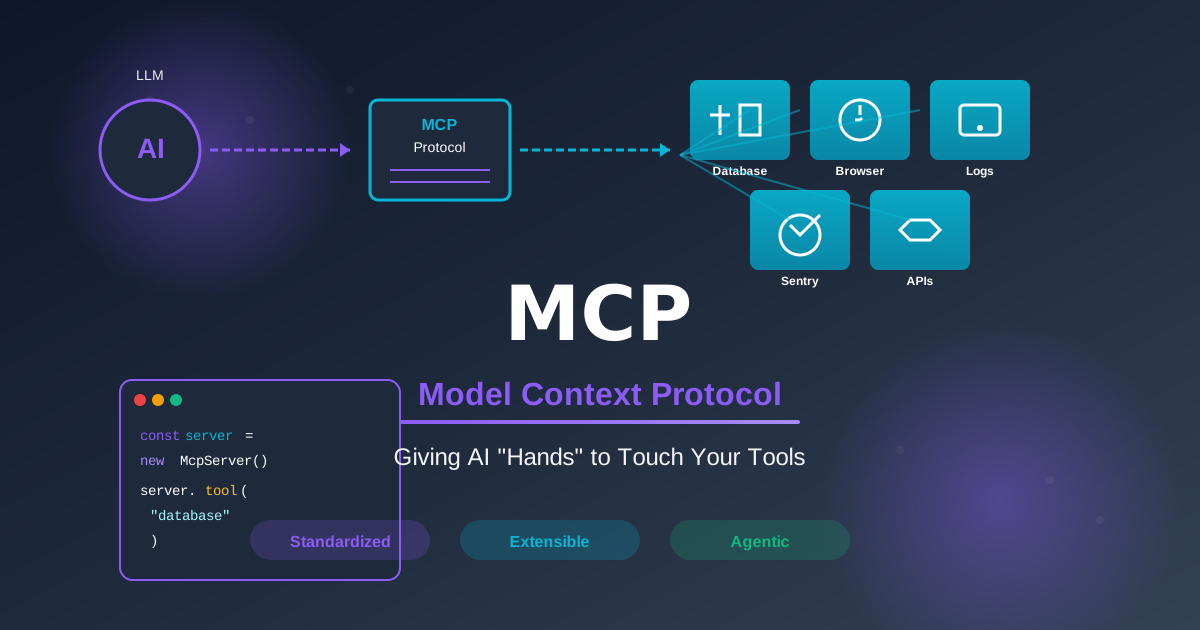
MCP: give your AI eyes and hands, not just a keyboard
Storytime: I was debugging a production issue at an unreasonable hour. The AI I was using was genuinely helpful, right up until the moment I needed it to check something in the database, verify an environment variable, or pull a stack trace from our error tracker. Each time, I had to stop, context-switch to another tab, copy something, paste it back, and repeat.
The AI was smart, but it was blind.
The Model Context Protocol (MCP) fixes this. Instead of you manually shuttling context between your tools and your AI, MCP lets the AI reach out and grab what it needs directly, including databases, browser sessions, error trackers, and internal APIs. It is working in production today, and once you experience it, it is hard to go back.
What’s actually happening here
MCP is a client-server protocol, but not in the traditional web sense. It consists of three pieces:
MCP Hosts are AI applications that support the protocol, such as Claude Desktop or Cursor. The host manages connections to MCP servers and decides when to invoke them.
MCP Servers expose tools (functions the AI can call) and resources (data the AI can read). You might have one server for your database, another for error tracking, and another for your browser, with each focused on a specific domain.
The Protocol itself runs over JSON-RPC under the hood. You just need to know that when you ask your AI a question, it can now fetch the answer directly instead of waiting for you to paste it in.
Here is what that looks like in practice:
You ask: “What’s causing the error spike today?”
The AI queries your Sentry MCP server, fetches recent issues, reads the relevant code, and answers your question in plain language.
You see the answer without ever opening Sentry.
Servers you can use right now
The ecosystem already has solid integrations for common developer workflows. Let’s look at the ones I recommend reaching for first.
Chrome DevTools MCP
This integration gives your AI control of a real browser. Instead of describing how to reproduce a bug, you can ask the AI to reproduce it.
// Natural language prompt:
"Open the staging login page, try the test credentials,
and report any console errors"

// What the AI actually does:
// 1. Launches browser, navigates to URL
// 2. Fills and submits the form
// 3. Monitors the console
// 4. Reports back what it found
I find this most useful for CSS debugging. You can ask the AI to inspect a button, check the computed styles, and figure out why it is misaligned on mobile, avoiding the back-and-forth between DevTools and a chat window.
Sentry MCP
Error tracking becomes conversational.
// You ask:
"Show me unresolved database errors from the API service, last 24 hours";

// The AI:
// - Translates to Sentry API calls
// - Filters by project, timeframe, error type
// - Returns formatted stack traces
The real benefit is that the AI can fetch an error from Sentry, open the relevant source file, and suggest a fix, all in one shot. That workflow feels like magic the first time you run it.
Tip: Use a read-only Sentry API token. There is no reason your AI needs write access here.
Postgres MCP
The AI understands your schema without requiring you to copy and paste it into every session.
// You ask:
"How many users signed up last week, grouped by referral source?";

// The AI:
// 1. Checks the schema to find the right tables and columns
// 2. Writes the SQL
// 3. Runs it
// 4. Formats the results
Important: Configure this with read-only credentials. A SELECT-only database user takes five minutes to set up and ensures the AI can never run a DELETE with a missing WHERE clause.
Stripe MCP
Customer and payment queries in plain language are especially useful if your support team needs Stripe access without learning the full dashboard.
// Support workflow:
"Does user@example.com have an active subscription, and when does it renew?";

// Dev workflow:
"Create a test customer with a monthly Pro plan subscription";
Use restricted API keys, and keep test mode and live mode configurations separate.
Building your own MCP server
When the existing servers do not cover your use case, such as an internal API, a proprietary tool, or a custom database, building one is straightforward. Let’s look at the basic structure.
The basic structure
import { Server } from "@modelcontextprotocol/sdk/server/index.js";
import { StdioServerTransport } from "@modelcontextprotocol/sdk/server/stdio.js";
import { CallToolRequestSchema, ListToolsRequestSchema } from "@modelcontextprotocol/sdk/types.js";

const server = new Server({ name: "my-server", version: "1.0.0" }, { capabilities: { tools: {} } });

// Tell the AI what tools are available
server.setRequestHandler(ListToolsRequestSchema, async () => ({
  tools: [
    {
      name: "search_users",
      description: "Searches users by email or username",
      inputSchema: {
        type: "object",
        properties: {
          query: { type: "string", description: "Search term" },
          limit: { type: "number", default: 10 },
        },
        required: ["query"],
      },
    },
  ],
}));

// Handle the actual calls
server.setRequestHandler(CallToolRequestSchema, async (request) => {
  const { name, arguments: args } = request.params;

  if (name === "search_users") {
    const users = await database.users.search(args.query, args.limit ?? 10);
    return {
      content: [{ type: "text", text: JSON.stringify(users, null, 2) }],
    };
  }

  throw new Error(`Unknown tool: ${name}`);
});

// Connect and run
const transport = new StdioServerTransport();
await server.connect(transport);
That is the entire pattern. You define what tools exist using ListTools, handle when they are called in CallTool, and return structured results.
Add validation: always
Before you ship anything, add Zod validation on your inputs. The AI sends data in good faith, but good faith is not a type system.
import { z } from "zod";

const SearchSchema = z.object({
  query: z.string().min(1).max(100),
  limit: z.number().int().min(1).max(100).default(10),
});

// In your handler:
const validated = SearchSchema.parse(args);
const users = await database.users.search(validated.query, validated.limit);
Clear error messages when validation fails make debugging significantly easier.
Add resources for dynamic docs
Resources are how you give the AI access to reference data, such as API documentation or configurations that change over time.
server.setRequestHandler(ReadResourceRequestSchema, async (request) => {
  if (request.params.uri === "docs://api/endpoints") {
    const docs = await loadApiDocs(); // fetches current state
    return {
      contents: [{ uri: request.params.uri, mimeType: "text/markdown", text: docs }],
    };
  }
});
This is one of my favorite MCP patterns: documentation that is always current because it is fetched dynamically, rather than copied and pasted once and forgotten.
Connecting it to Claude Desktop
Edit the config file:
- macOS:
~/Library/Application Support/Claude/claude_desktop_config.json - Windows:
%APPDATA%/Claude/claude_desktop_config.json
{
  "mcpServers": {
    "my-server": {
      "command": "node",
      "args": ["/path/to/server/build/index.js"],
      "env": {
        "DATABASE_URL": "postgresql://localhost:5432/mydb"
      }
    }
  }
}
Restart Claude Desktop, and your tools will be available.
Security: a few rules that matter
Read-only by default: Every database connection your MCP server makes should use a read-only user unless you have explicitly decided otherwise. This applies to Postgres, your internal APIs, and all other services.
Validate inputs: Always validate, even though the inputs come from an AI. This is especially true for anything destructive:
const DeleteSchema = z.object({
  userId: z.number().int().positive(),
  confirmationToken: z.string().uuid(), // require explicit confirmation
});
Separate dev from prod: Use different MCP configurations for different environments. Point your day-to-day work at your development database. Only connect to production when you specifically need it, and never with write access unless there is no alternative.
Log everything: Build an audit trail from the start:
await auditLog.record({
  timestamp: new Date().toISOString(),
  tool: name,
  arguments: args,
});
When something unexpected happens, and it will, you will want to know exactly what the AI ran.
Go connect something
The fastest way to understand MCP is to set up one server and use it for a week. I suggest starting with the task that causes you to context-switch most often. For me, that was checking error logs. For you, it might be querying your database, Stripe, or an internal API.
Pick that one thing, get it working, and the productivity shift will be immediately obvious. Once you experience the difference between copying data and simply asking for it, you will start seeing connection points everywhere.
The infrastructure is ready. The only question is which integration you build first.